How to Add a Live Subtitle Overlay to Your Stream
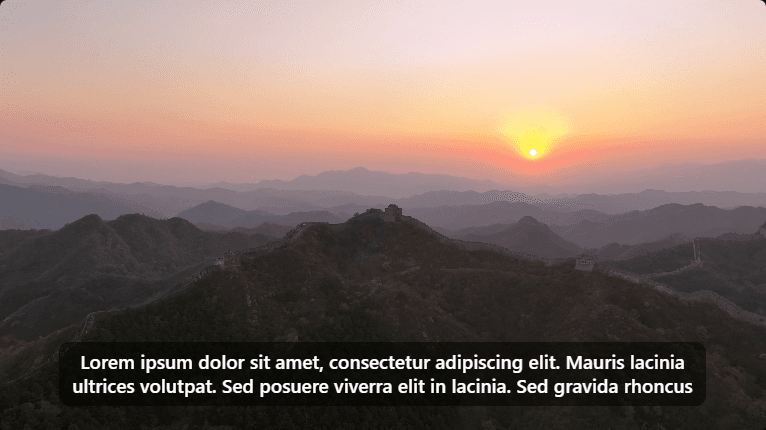
MJET Labs lets you generate a transparent, real-time subtitle overlay that updates as you speak. You can drop this clean web link directly into OBS Studio, ProPresenter, vMix, or any software that supports browser sources.
Here is how to set it up in under two minutes.
1. Open the Caption Display Dialog
- Open your stream in the MJET Labs dashboard.
- In the top toolbar, click Caption display.
2. Adjust Your Settings
Use the live preview to customize how subtitles appear on your stream:
- Language: Select original spoken speech or any enabled translation language.
- Font Size: Default is
48(scales automatically with 1080p and 4K stream resolutions). - Max Lines: Set to
1or2for clean lower-third subtitles, or3+for presentations. - Background Opacity: Set to
0%for fully transparent text over video, or20%–50%for a subtle tinted bar that stays readable over bright slides.
Once you're happy with the preview, click Copy display link.
3. Add to Your Production Software
Paste your copied display link into your streaming software:
OBS Studio
- Under Sources, click + → Browser.
- Paste your copied display link into the URL field.
- Set Width to
1920and Height to1080(or match your canvas resolution). - Click OK.
ProPresenter
- Add a Web Object or Browser Media to your presentation or props layer.
- Paste your copied display link.
- Position the web layer across the lower portion of your canvas.
vMix
- Click Add Input → Web Browser.
- Paste the display link and set the resolution to
1920x1080. - Assign the input to an Overlay channel.
URL Parameters Reference
You can also customize the overlay on the fly by adding query parameters directly to your URL:
| Parameter | Default | Description |
|---|---|---|
lang | original | Language code (e.g. es, fr, ja, zh) |
size | 48 | Reference font size in pixels (responsive) |
lines | 2 | Maximum lines visible before scrolling |
opacity | 0 | Background opacity from 0 (transparent) to 100 (solid) |
Example URL:
https://mjetlabs.com/watch/your-stream/display?lang=es&size=36&lines=2&opacity=30